How to Choose the Right Webcam for Working from Home in the UK: A Complete 2026 Guide
Working from home has become a permanent fixture for millions of people across the UK, and your webcam is now one of the most important pieces of kit on your desk. Whether you're joining daily stand-ups on Microsoft Teams, presenting to clients on Zoom, or collaborating via Google Meet, a poor-quality webcam can undermine your professional image — blurry video, washed-out colours, and tinny audio all send the wrong message before you've said a word.
The good news is that the UK webcam market has matured considerably. There are excellent options at every price point, from sub-£40 720p cameras that are perfectly adequate for occasional calls, to 4K AI-powered models that make you look like you're broadcasting from a professional studio. This guide walks you through everything you need to know to choose the right webcam for your home office setup, with current UK pricing and availability from major retailers including Amazon UK, Currys, John Lewis, and Argos.
Do You Actually Need a New Webcam?
Before spending any money, it's worth assessing what you already have. Most modern laptops include a built-in webcam, but the quality varies enormously. Budget and mid-range laptops typically ship with 720p cameras that struggle in anything other than bright daylight. Premium laptops — particularly business-focused models from Dell, Lenovo, and HP — increasingly include 1080p or even 2K cameras with decent low-light performance.
If you're using a desktop PC or an older laptop with a poor built-in camera, or if you find yourself frequently on video calls where your appearance matters, a dedicated external webcam is almost certainly worth the investment. Even a mid-range model in the £60–£100 range will deliver a noticeably better image than most built-in laptop cameras.
Key Specifications Explained
Resolution
Webcam resolution is measured in pixels, and you'll commonly see three tiers:
- 720p (1280×720): The minimum acceptable standard for video calls. Fine for occasional use or if you're on a tight budget, but the image can look soft on larger screens.
- 1080p (1920×1080): The sweet spot for most home workers. Delivers a sharp, professional image on all common video platforms. This is what the majority of people should be buying in 2026.
- 4K (3840×2160): Overkill for most video calls, since platforms like Teams and Zoom typically cap streams at 1080p. However, 4K cameras can crop and zoom digitally without losing quality, which is useful for AI-framing features. Worth considering if you also use your webcam for recording content.
Frame Rate
Frame rate determines how smooth your video looks. Most webcams offer 30 frames per second (fps) at their maximum resolution, which is perfectly adequate for video calls. Some models offer 60fps at 1080p or 720p — this makes motion look smoother and is particularly useful if you move around a lot during calls or use your webcam for streaming. For standard office video calls, 30fps is entirely sufficient.
Field of View
Field of view (FoV) determines how much of the scene the camera captures. A narrower FoV (around 65°) keeps the focus tightly on your face, which can look more professional. A wider FoV (78–90°) captures more of your background and is useful if you want to show a whiteboard or include multiple people. Most home workers are best served by a 78–90° FoV with the option to crop digitally.
Autofocus
Fixed-focus webcams are set to a specific distance and can look soft if you move closer or further from the camera. Autofocus cameras continuously adjust to keep you sharp, which is particularly useful if you lean forward to look at your screen or move around during calls. For a home office, autofocus is a worthwhile feature — look for models with fast, accurate autofocus rather than slow, hunting systems.
Low-Light Performance
This is arguably the most important specification for UK home workers. British homes often have limited natural light, particularly in winter, and many home offices are in rooms without ideal lighting. A webcam with good low-light performance — achieved through a larger aperture (lower f-number), better image processing, or built-in lighting — will make a significant difference to how you look on calls.
Built-in Microphone
Most webcams include one or two built-in microphones. Quality varies considerably — budget models often produce thin, echoey audio, while premium webcams include noise-cancelling microphones that can filter out background sounds like keyboard clicks, traffic, and household noise. If audio quality matters to you, consider whether a dedicated USB microphone or headset might be a better investment than relying on a webcam's built-in mic.
Connection Type
The vast majority of webcams connect via USB. Older models use USB-A, while newer premium webcams increasingly use USB-C. If your laptop only has USB-C ports, check compatibility before buying — you may need an adapter for USB-A models. Some webcams, like the Logitech StreamCam, are USB-C native and work particularly well with modern laptops.
Recommended Webcams by Budget (UK Pricing, September 2026)
All prices are approximate as of September 2026 and are subject to change. Check current prices at your preferred retailer before purchasing.
Budget: Under £50
| Model | Resolution | Key Features | Approx. UK Price | Where to Buy |
|---|---|---|---|---|
| Logitech C920s HD Pro | 1080p / 30fps | Privacy shutter, dual microphones, autofocus | £49–£55 | Amazon UK, Currys, Argos |
| Logitech C505e | 720p / 30fps | Wide-angle 90° FoV, long USB cable, plug-and-play | £35–£45 | Amazon UK, Currys |
| Microsoft LifeCam HD-3000 | 720p / 30fps | TrueColor technology, noise-cancelling mic, flexible stand | £25–£35 | Amazon UK, Argos |
The Logitech C920s HD Pro is the standout choice at this price point. It delivers genuine 1080p video, includes a physical privacy shutter (a useful security feature), and has been a reliable workhorse for home workers for several years. The dual microphones produce decent audio for the price. Available from Amazon UK, Currys, and Argos at approximately £49–£55 as of September 2026.
Mid-Range: £50–£150
| Model | Resolution | Key Features | Approx. UK Price | Where to Buy |
|---|---|---|---|---|
| Logitech C922 Pro Stream | 1080p / 30fps, 720p / 60fps | Background replacement, dual mics, tripod mount | £75–£90 | Amazon UK, Currys, John Lewis |
| Logitech Brio 500 | 1080p / 30fps | RightLight 4 auto-exposure, Show Mode, USB-C, privacy shutter | £89–£109 | Amazon UK, Currys, John Lewis |
| Logitech StreamCam | 1080p / 60fps | USB-C, vertical video, AI face tracking, smart autofocus | £99–£120 | Amazon UK, Currys, John Lewis |
| Razer Kiyo Pro | 1080p / 60fps | Adaptive light sensor (no ring light), wide/standard FoV toggle | £99–£130 | Amazon UK, Currys |
The Logitech Brio 500 is particularly well-suited to UK home workers. Its RightLight 4 technology automatically adjusts exposure and colour balance to compensate for challenging lighting conditions — a genuine advantage in British homes where natural light can be inconsistent. The USB-C connection and physical privacy shutter are welcome additions. Priced at approximately £89–£109 as of September 2026 at Amazon UK, Currys, and John Lewis.
The Logitech StreamCam is the best choice if you want 1080p at 60fps and a USB-C connection. Its AI-powered face tracking keeps you centred in frame even if you move around, and it supports vertical video for social media content. Available at approximately £99–£120 as of September 2026.
Premium: £150 and Above
| Model | Resolution | Key Features | Approx. UK Price | Where to Buy |
|---|---|---|---|---|
| Logitech Brio 4K | 4K / 30fps, 1080p / 60fps | HDR, Windows Hello facial recognition, 5× digital zoom | £149–£199 | Amazon UK, Currys, John Lewis |
| Insta360 Link 2 | 4K / 30fps | AI tracking gimbal, gesture control, whiteboard mode, desk mode | £149–£179 | Amazon UK, John Lewis |
| Logitech MX Brio | 4K / 30fps | AI framing, RightLight 5, USB-C, Show Mode, premium build | £199–£229 | Amazon UK, Currys, John Lewis |
| Dell UltraSharp WB7022 | 4K / 30fps | AI auto-framing, noise-cancelling mics, magnetic mount | £179–£219 | Amazon UK, Currys |
The Insta360 Link 2 is one of the most innovative webcams available in the UK market. Unlike conventional fixed webcams, it uses a motorised gimbal to physically track your face and keep you centred in frame — even if you stand up, move to a whiteboard, or turn to look at a second screen. It also includes a dedicated whiteboard mode that automatically crops and enhances a whiteboard behind you, and a desk mode that flips the camera downward to show documents or products. Priced at approximately £149–£179 as of September 2026 at Amazon UK and John Lewis.
The Logitech MX Brio represents the pinnacle of conventional webcam design. Its RightLight 5 AI-powered exposure system is the most sophisticated available, and the 4K sensor allows significant digital cropping without quality loss. Available at approximately £199–£229 as of September 2026.
Setting Up Your Webcam: Step-by-Step
Step 1: Physical Placement
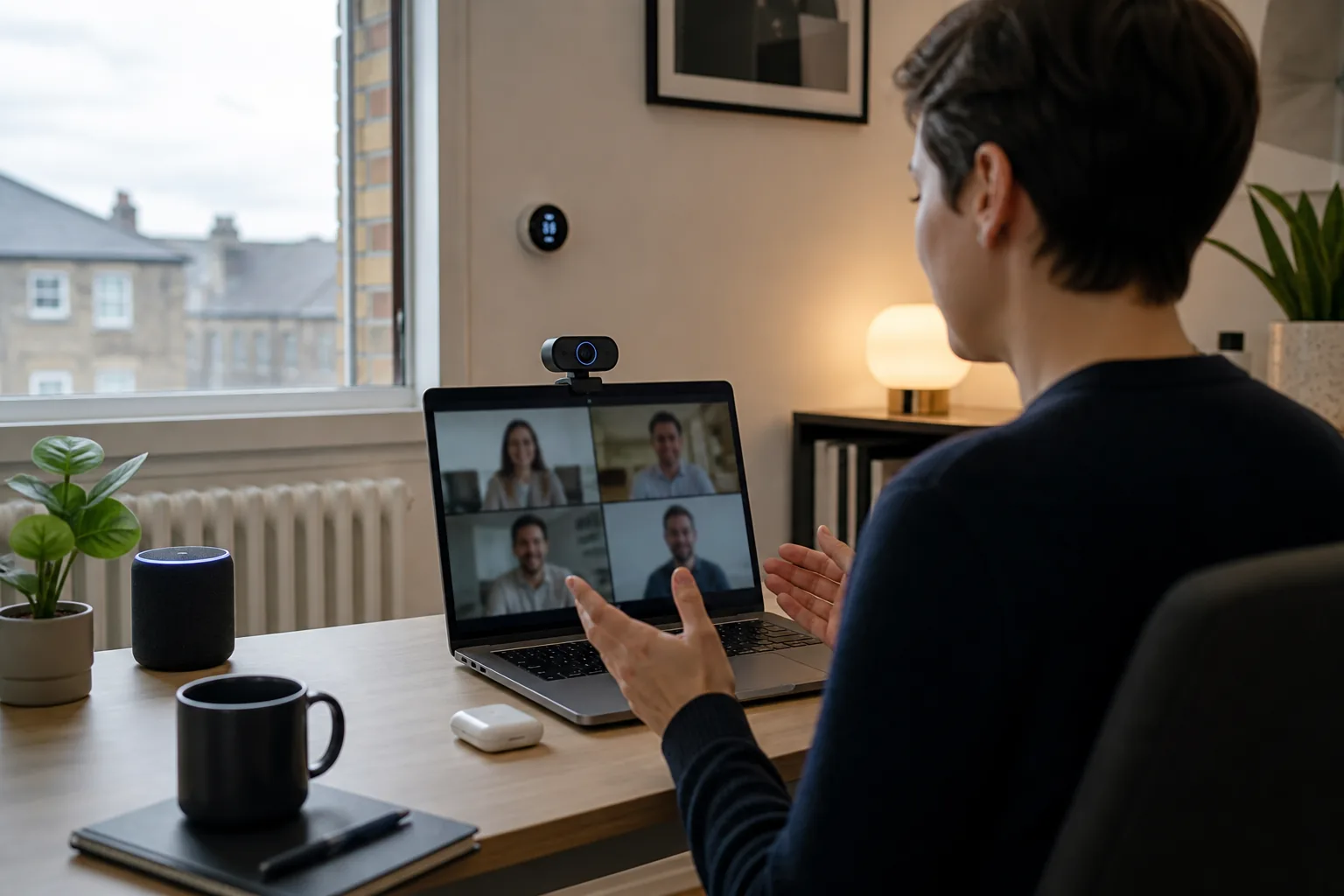
Camera placement has a bigger impact on how you look than almost any other factor. The ideal position is at eye level or very slightly above — this creates a natural, flattering angle. Mounting your webcam on top of your monitor is the most common approach, and most models include a clip that fits monitors up to around 30mm thick.
Avoid placing the camera below eye level (it creates an unflattering upward angle) or too far to the side (it makes you appear to be looking away from the person you're speaking to). If you use a laptop, consider a laptop stand to raise the screen — and therefore the built-in camera — to eye level.
Step 2: Lighting
Good lighting transforms webcam footage more than any camera upgrade. The golden rule is to have your primary light source in front of you, not behind you. A window behind you will silhouette your face; a window in front of you will illuminate it naturally.
If your home office doesn't have good natural light, a simple ring light or a desk lamp positioned in front of you will make a significant difference. Ring lights are available from Amazon UK and Argos for as little as £15–£30 and can dramatically improve the quality of your video calls without any camera upgrade.
Step 3: Driver Installation and Software Setup
Most modern webcams are plug-and-play on Windows 10, Windows 11, and macOS — simply connect the USB cable and the operating system will install the necessary drivers automatically. However, to access advanced features like AI framing, background replacement, or custom exposure settings, you'll typically need to install the manufacturer's companion software:
- Logitech webcams: Logi Tune (free, available from Logitech's website)
- Razer webcams: Razer Synapse (free, available from Razer's website)
- Insta360 Link 2: Insta360 Link Controller (free, available from Insta360's website)
- Dell webcams: Dell Peripheral Manager (free, available from Dell's website)
Step 4: Configuring Your Video Call Platform
Once your webcam is connected and any companion software is installed, you'll need to select it as your camera in your video call platform:
- Microsoft Teams: Settings → Devices → Camera
- Zoom: Settings → Video → Camera
- Google Meet: Settings (gear icon) → Video → Camera
- Slack Huddles: Settings → Audio & Video → Camera
Most platforms also allow you to preview your camera feed before joining a call — use this to check your framing, lighting, and background before important meetings.
Step 5: Background and Privacy
Consider what appears behind you on camera. A tidy, neutral background looks professional; a cluttered or distracting background can undermine your credibility. Options include:
- Physical tidying: The simplest and most reliable approach
- Virtual backgrounds: Available in Teams, Zoom, and Google Meet — work best with a plain background behind you
- Background blur: Available in most platforms and some webcam companion apps — softens the background without replacing it entirely
- Physical privacy shutter: If your webcam includes one (like the Logitech C920s or Brio 500), use it when the camera is not in use
Webcam Compatibility: What to Check Before You Buy
Operating System Compatibility
All major webcams are compatible with Windows 10 and Windows 11. macOS compatibility is generally good for Logitech, Razer, and Insta360 models, though some advanced features (like Windows Hello facial recognition on the Logitech Brio 4K) are Windows-only. Linux support varies — Logitech webcams generally work well on Linux via UVC (USB Video Class) drivers, but companion software is typically not available.
Video Call Platform Compatibility
All webcams listed in this guide are compatible with Microsoft Teams, Zoom, Google Meet, and Slack. Some AI features (like Logitech's AI framing) work independently of the platform via the companion software, while others (like Teams' background blur) are platform-side features that work with any camera.
USB Port Requirements
Check which USB ports your computer has before buying. USB-A webcams (the rectangular connector) work with any standard USB port. USB-C webcams require a USB-C port — common on modern laptops but not universal on desktop PCs. If your computer lacks the right port, you'll need a USB hub or adapter.
Pros and Cons Summary
Budget Webcams (Under £50)
- ✅ Affordable entry point
- ✅ Plug-and-play simplicity
- ✅ Adequate for occasional video calls
- ❌ Limited low-light performance
- ❌ Basic microphone quality
- ❌ Fewer advanced features
Mid-Range Webcams (£50–£150)
- ✅ Noticeably better image quality
- ✅ Improved low-light performance
- ✅ Better microphones
- ✅ Useful features like privacy shutters and AI exposure
- ❌ Still limited compared to premium models in challenging lighting
- ❌ AI framing typically not included
Premium Webcams (£150+)
- ✅ Best possible image quality
- ✅ Advanced AI features (framing, tracking, exposure)
- ✅ 4K resolution for future-proofing and digital zoom
- ✅ Superior microphone quality
- ❌ Significant cost premium
- ❌ 4K resolution not fully utilised by most video call platforms
- ❌ May require companion software for full feature access
Our Recommendation by Use Case
- Occasional video calls, tight budget: Logitech C920s HD Pro (~£49–£55) — reliable 1080p with a privacy shutter
- Daily video calls, home office: Logitech Brio 500 (~£89–£109) — excellent low-light performance for UK homes
- Frequent calls, USB-C laptop: Logitech StreamCam (~£99–£120) — 1080p/60fps with USB-C and AI face tracking
- Premium setup, content creation: Insta360 Link 2 (~£149–£179) — motorised AI tracking and versatile shooting modes
- Best overall, no compromise: Logitech MX Brio (~£199–£229) — the most polished webcam available in the UK
Final Thoughts
Choosing the right webcam for working from home doesn't have to be complicated. For most UK home workers, a 1080p model in the £50–£110 range — such as the Logitech Brio 500 or C920s — will deliver a significant improvement over a built-in laptop camera and serve you well for years. If you're on frequent client-facing calls or want to future-proof your setup, the Insta360 Link 2 or Logitech MX Brio are worth the premium.
Whatever you choose, remember that lighting and camera placement will have a bigger impact on how you look than the camera itself. Invest a few minutes in getting these right, and even a budget webcam will produce a professional result.
All prices quoted are approximate as of September 2026 and are subject to change. Always check current prices at your preferred UK retailer before purchasing.
Tom Barrows
Editor, HomeTechLAB
Researched and drafted with AI, reviewed and edited by Tom Barrows. How we produce our guides
Last updated: 25 Oct 2026
Please note: Everything on HomeTechLAB is our subjective opinion, offered to help with your research — not a statement of fact. Always do your own research and check current details with the retailer or manufacturer before you buy.